

How to Say Hi to Your New Substack Subscribers - Without the Grind or the Spam
In my tests, DMs blew my post response rate out of the water. Here’s the new tool I built.


This one’s for anyone who runs a newsletter on Substack. If that’s not you, no worries—see you next time.
You’re not broken. Your tools are.
If you’ve run a publication, you’ve felt it: you want to say hi to new subscribers, or follow up with people who’ve been quiet for a while.
Doing it one-by-one in the Substack chat is a lot of work—and it doesn’t scale. Doing it with sketchy automation or spray-and-pray DMs is the opposite of what your readers signed up for.
So you’re stuck between “I should reach out” and “I don’t have a good way to do it.”
StackContacts Connect is a Chrome extension built to sit in that gap. It helps you send personalized direct messages (DMs) to your own Substack subscribers, in small batches, with a delay between each send—so you stay in control and stay on the right side of how Substack expects tools to behave.
What It Actually Does
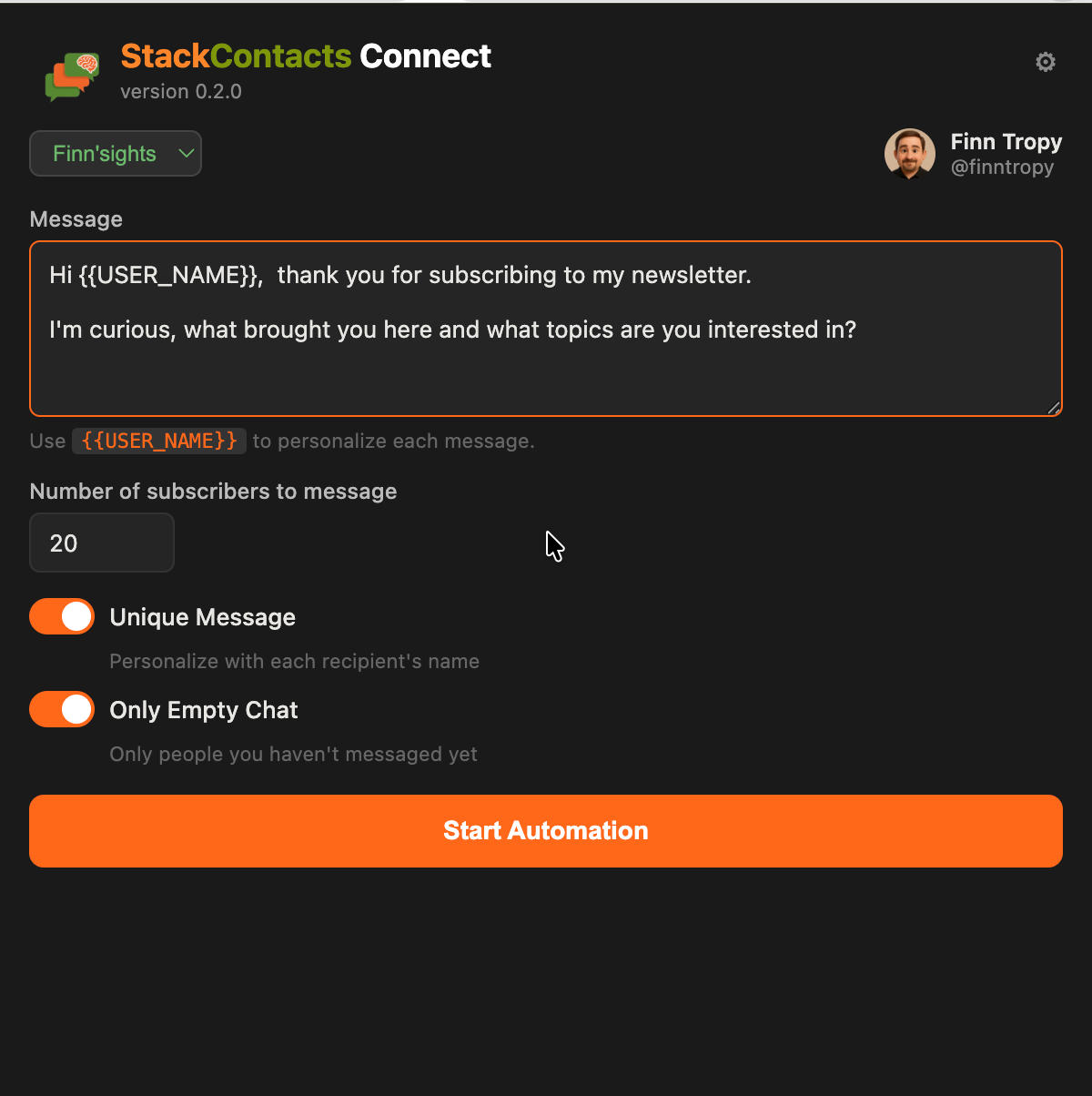
StackContacts Connect does one job: it lets you message up to 50 of your subscribers in one run, with one message at a time and a pause you choose between each send.
You write the message (or a template), set how many people to include, flip a couple of toggles, and click Start Automation.
No wizard, no dashboard—just one form and one action.
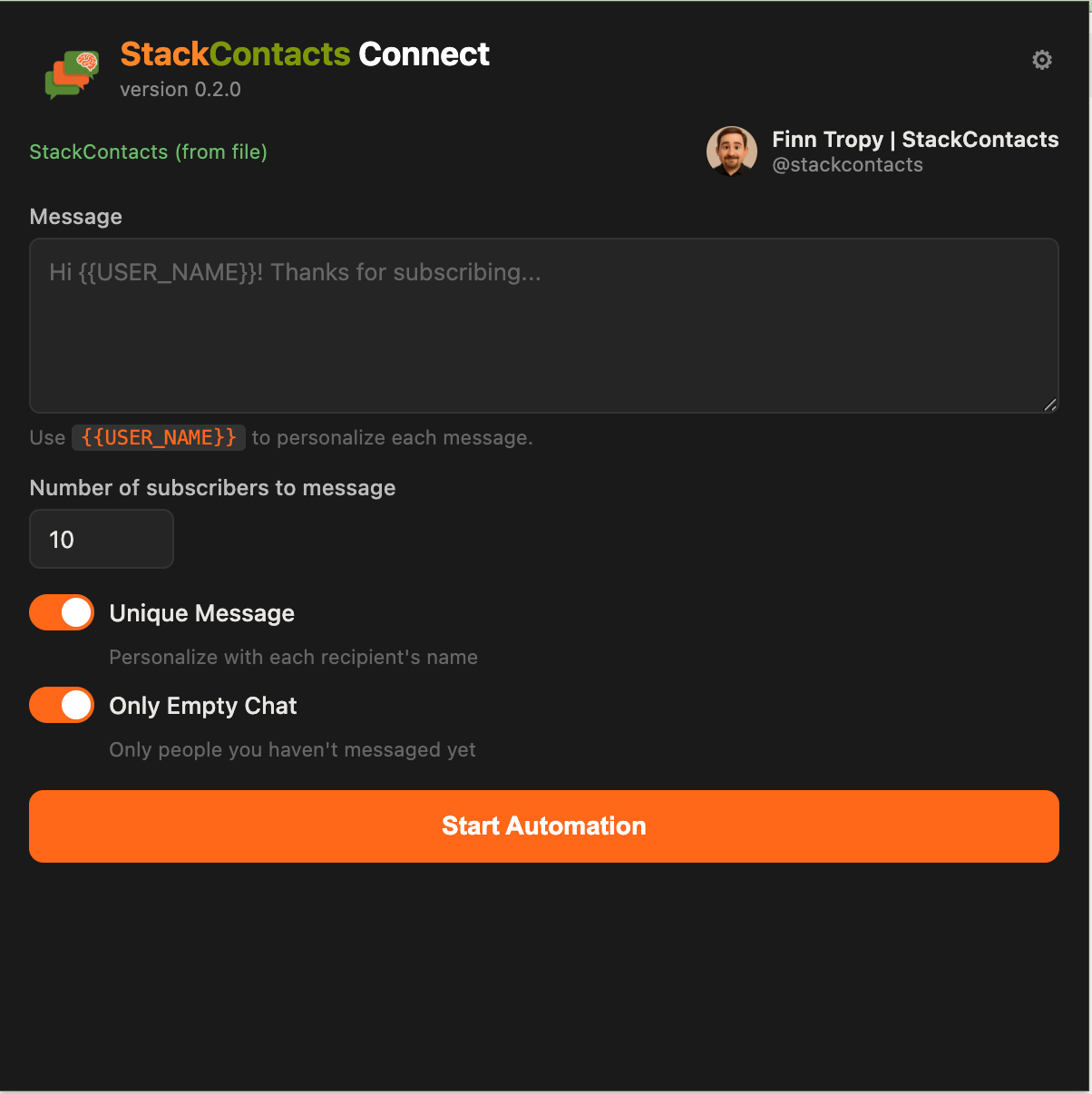
You can personalize each message with the recipient’s name. Use {{USER_NAME}} in your text; when Unique Message is on, the extension replaces it with their name as they’ve configured it in Substack Settings.
So “Hi {{USER_NAME}}, thanks for subscribing” becomes “Hi Leigh Smith, thanks for subscribing” for Leigh, and “Hi Jim Wesson, thanks for subscribing” for Jim. Same draft, one click—but each person gets a message that feels written for them.
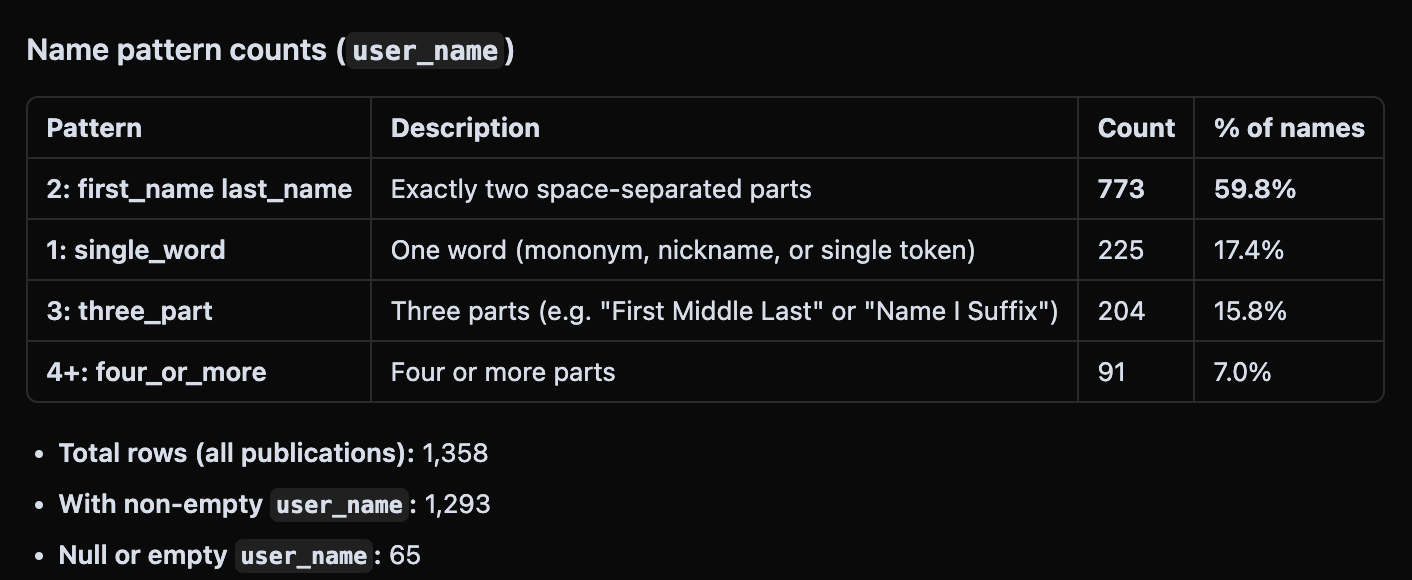
Why not just {{FIRST_NAME}} you may ask? Based on analysis of my subscribers that would fail over 40% of the cases. I found this out by sending awkward DMs with “Hi Dr.,” or “Hi The,” to my subscribers.
Here are the user name patterns from my subscribers.
The Only Empty Chat toggle matters. When it’s on, the extension only messages people you haven’t already started a conversation with.
That’s how you welcome new subscribers without saying “Hi!” to someone you already said “Hi!” to last week. When it’s off, you can include existing threads—handy for follow-ups. You decide each time.
Why a Chrome Extension, and Why the API
Earlier designs drove Substack’s chat UI with a content script: open the page, fill the “To:” field, type the message, click Send. It worked in theory.
In practice, any Substack redesign or CSS change could break the selectors. Failures were silent and hard to debug. The code was heavier and more fragile than it needed to be.
So I switched to Substack’s own APIs. The extension talks to the same endpoints Substack’s UI uses—fetch subscribers, start a thread, send a message—via fetch() with your existing session. No DOM automation. No clicking around in a tab. One request per send, clear success or failure.
The result: fewer lines of code, more reliable behavior, and errors you can actually explain when something goes wrong.
Both the subscriber list and the actual DM sending go through the API. You don’t hand your credentials to a third-party server. The extension runs in your browser and uses the session you already have when you’re logged into Substack.
No backend. No new account. Just you, your list, and a controlled send loop.
Zero-Config and Optional Power User Mode
By default, you don’t need a database or a file. You select your publication (the extension auto-detects your primary and other publications), and it pulls subscribers straight from Substack’s subscriber-stats endpoint—the same data API Substack’s own dashboard uses. You get names, user IDs, and subscription dates. Newest subscribers first.
That’s enough for “message my 50 newest subscribers” or “welcome people I haven’t messaged yet” without touching a single file.
Power User Mode
If you use my StackContacts tool and have a local database export, you can point this extension at that file instead.
Then you can run custom SQL—for example, “my paid monthly subscribers who have no DM thread yet” or “threads where we haven’t replied in 14 days”—and use that list as the recipient queue.
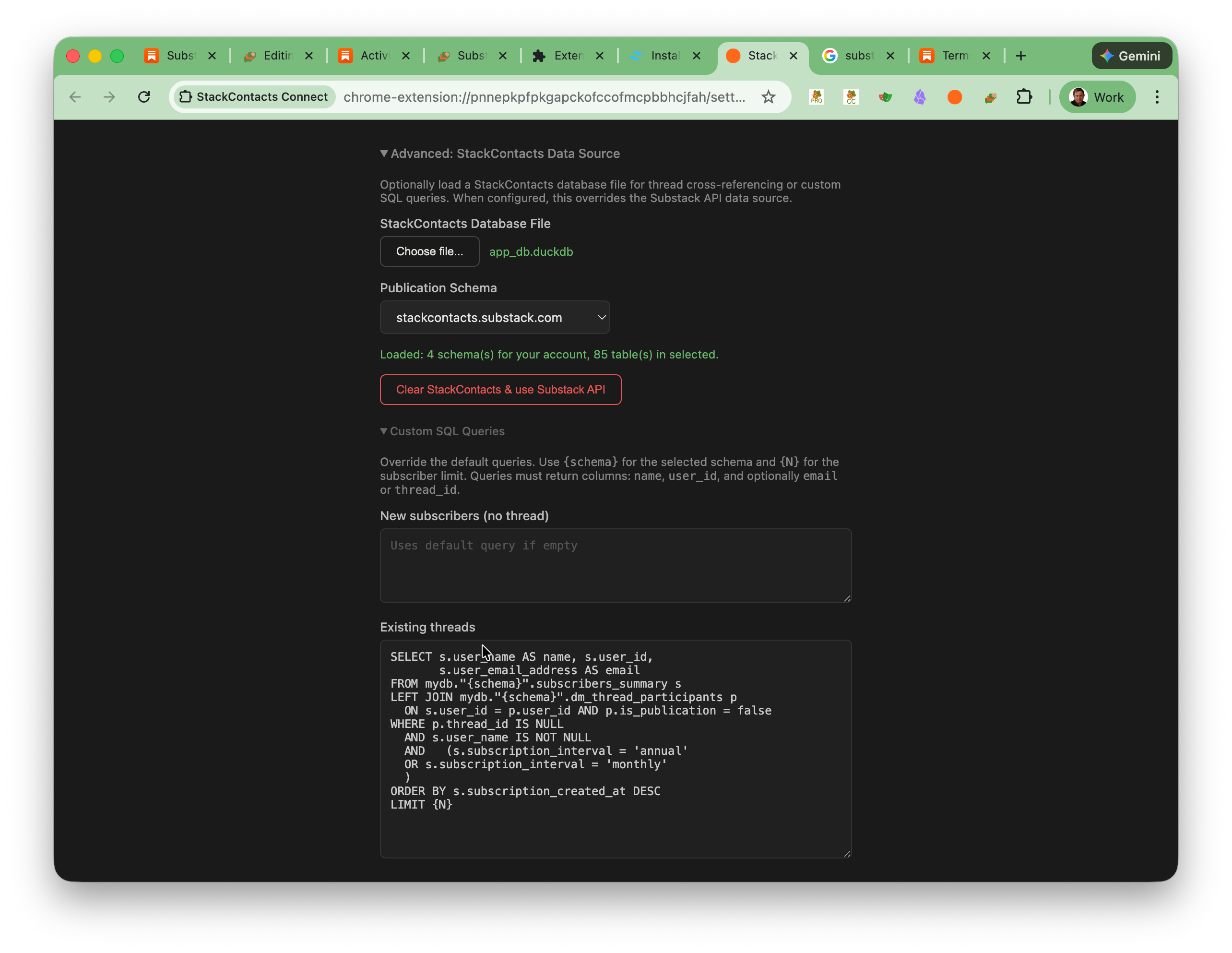
StackContact database stays optional. Most users will never need it; the default path is “Substack API only, zero database file setup.”
You’re in Control
Every run is you clicking Start Automation.
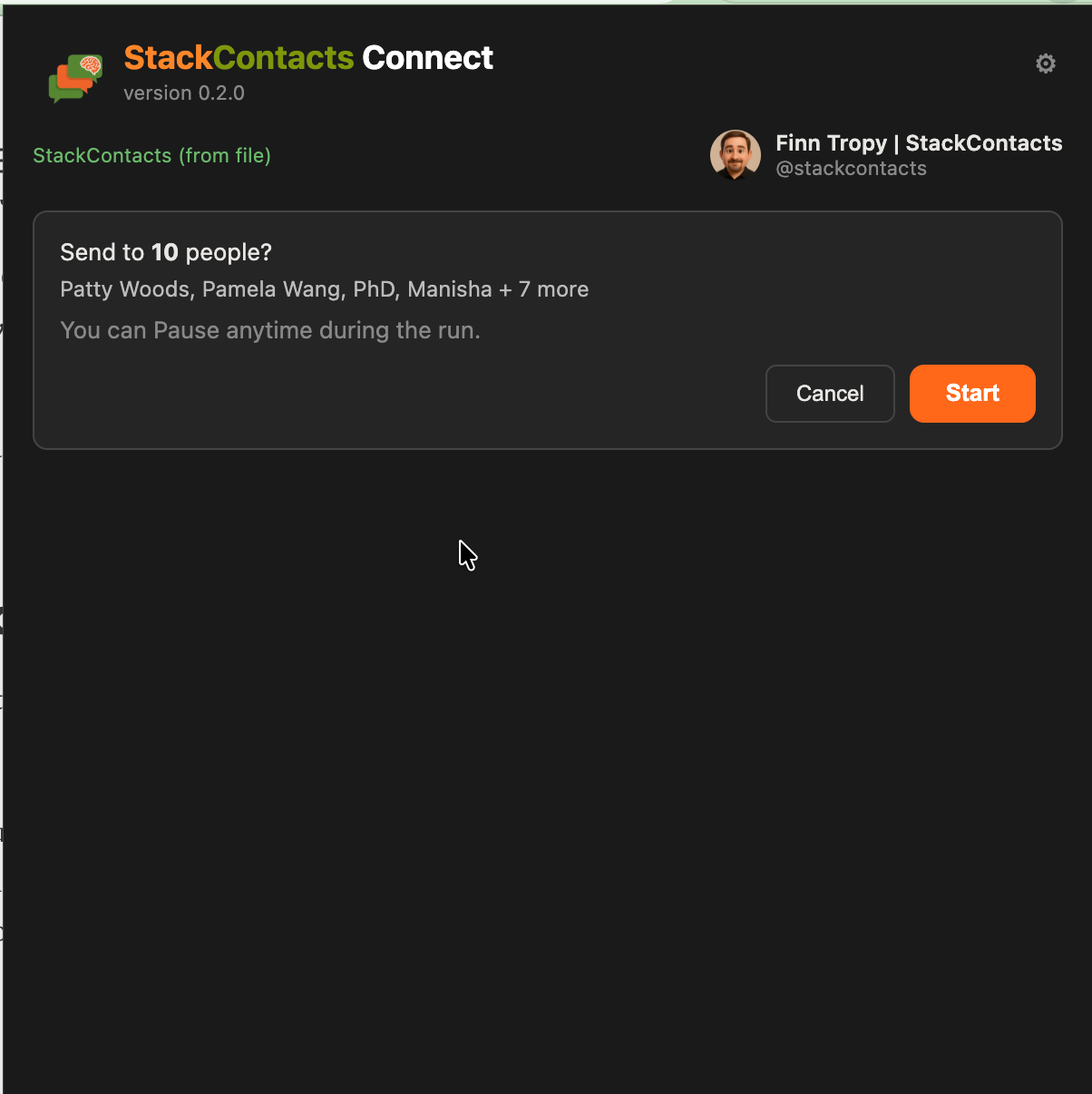
The extension doesn’t send on a schedule or in the background. It doesn’t blast hundreds of DMs while you’re away. You choose the message, the cap (1–50), and the delay between sends. A confirmation step shows you how many people will get the message before anything goes out.
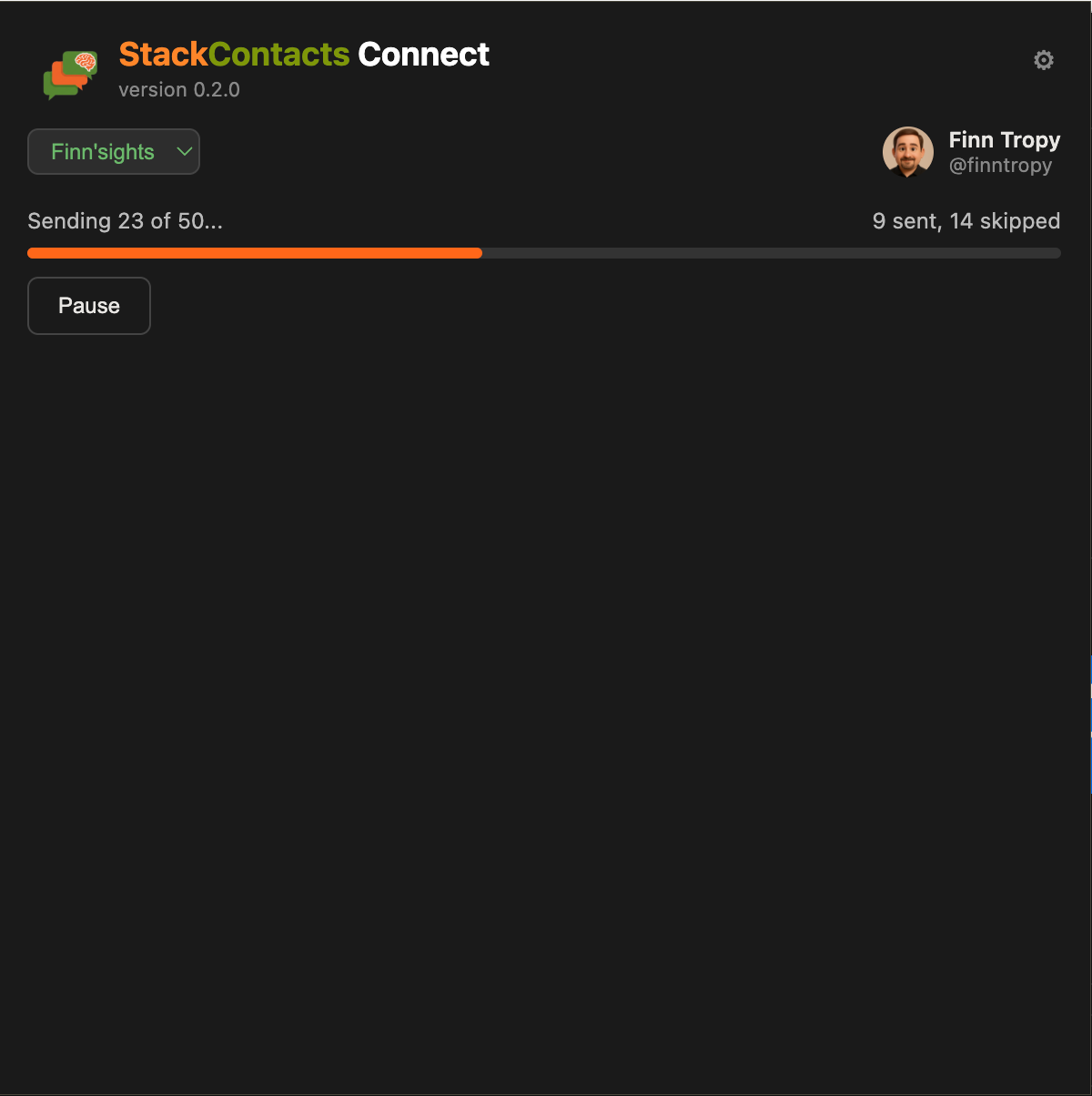
During the run, you see progress (”Sending 23 of 50”) and you can Pause at any time.
That’s deliberate. Substack’s terms and content guidelines don’t spell out “bulk DM” rules in one sentence, but they’re clear on no spam, no unattended automation, and no unreasonable load.
Sending only to your own subscribers, with a delay and a per-run cap, keeps you inside those expectations. Good software doesn’t push the platform; it makes it easier to do the right thing.
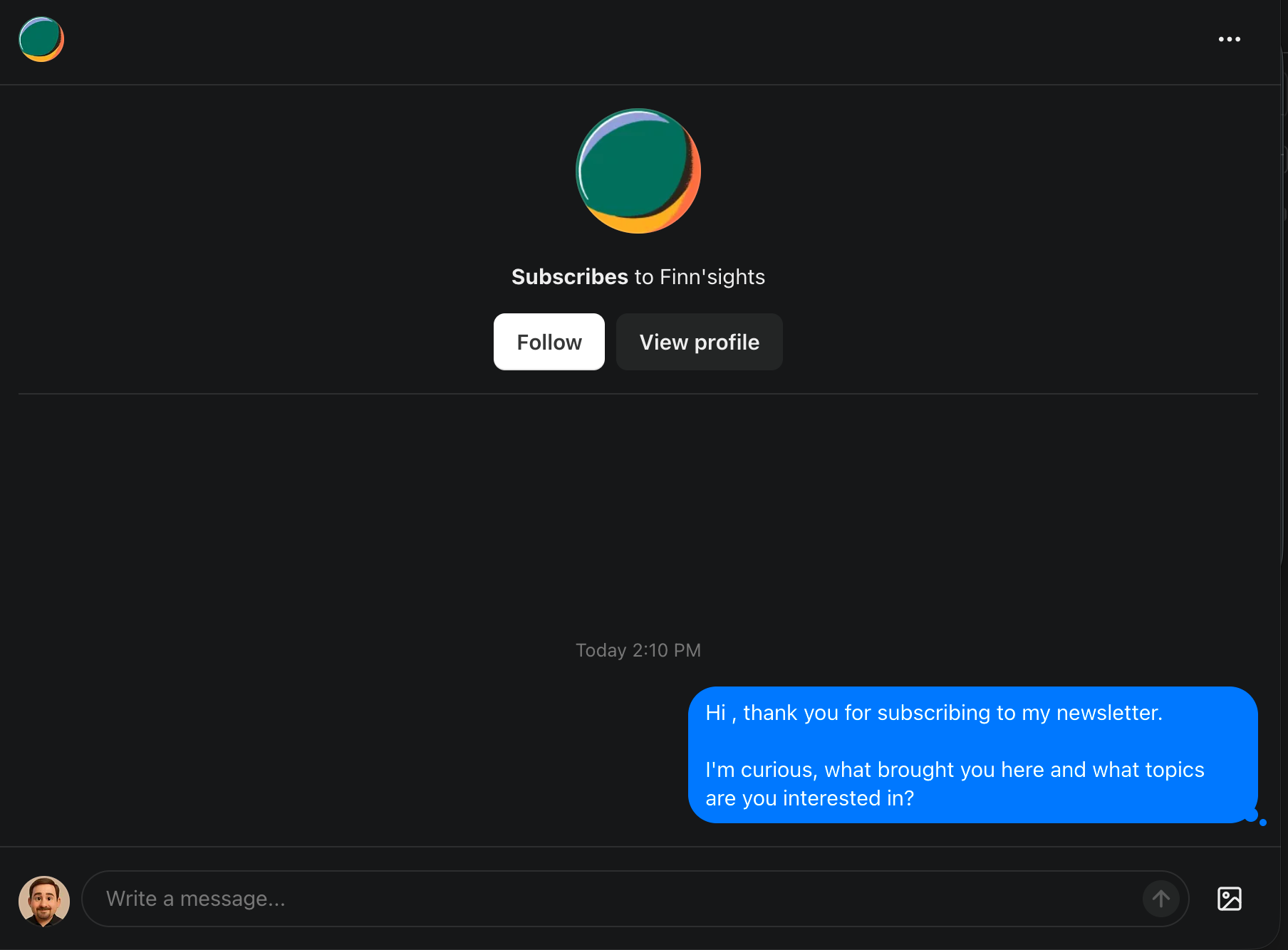
Subscribers will see your DM and can respond using the Substack Chat link.
Best Practices
Only message your own subscribers—people who’ve already subscribed to your publication.
Keep the message short and useful—a welcome, a thank-you, one link.
Use Only Empty Chat when welcoming new subscribers so you don’t double-message.
Respect the delay—10–15 seconds between sends is a solid default; going to the minimum “because you can” isn’t worth the risk.
Start small— 1...5 messages to test, then scale up if you’re happy with the result.
You trigger each run—the extension doesn’t send on its own.
Why DMs Hit Different
In my testing I’ve seen up to 53% response rate in the first four hours—far above what I expected. For comparison: my posts get about 2.8% (comments per delivered email).
DMs are a much more powerful, personal way to start the conversation with subscribers. Same audience; different channel; the numbers speak for themselves.
Who This Is For
StackContacts Connect is for newsletter creators who want to reach their subscribers personally—without grinding through the chat UI one by one and without turning into a spammer. It’s infrastructure: a single-form tool that does one job well, stays out of your way, and leaves you in control. If that’s the gap you’re in, it’s worth a look.
Troubleshooting
“Not logged in” or “Can’t reach Substack” — Log in to Substack in the same browser and check your connection.
Wrong publication or no subscribers — Open your Substack Settings and confirm which publication is selected and that it has subscribers.
Messages not sending or errors mid-run — Check that the message isn’t empty and “Number of subscribers” is at least 1. With Only Empty Chat on, some recipients may be skipped because you’ve already messaged them; the final count will show sent, skipped, and failed.
If you run a Substack publication and this sounds like your kind of tool, give StackContacts Connect a try.
Questions or feedback? Drop a comment below—I read and response to all of them.
And if you’re not yet subscribed, hit the button—more creator infrastructure, tools and practical guides on the way.
More creator tools and guides: Gumroad store
 | A guest post by
|