

How to Export Your Full StackContacts Dataset (Without Hitting the 500-Row Wall)
For: Creators with large lists doing outreach, segmentation, or revenue analysis Reading time: 8 minutes Difficulty: Intermediate

The Problem Every Power User Hits

You’re running a query in Claude. You want to export your most engaged subscribers for an outreach campaign. You have 23,000 active readers.
The AI returns 487 rows and says “results truncated.”
You try again. Maybe 503 rows this time. Still truncated.
The data is definitely there—you can see the counts, query it, and analyze it. But you can’t get it out in a usable format.
This isn’t a bug. It’s not a StackContacts limitation. Your database has no problem with 3,000 rows or 300,000.
You’re hitting the ceiling of the conversation layer.
And if you’re doing any serious outreach, enrichment, or cross-platform analysis, this limitation will cost you time, opportunities, and money.
Let me show you what’s actually happening—and then how to route around it completely.
Why Exports Cap Around ~500 Rows
Here’s the confusion: The data is there, so why can’t I export it?
The answer is in the architecture.
StackContacts uses something called an MCP (Model Context Protocol) server. It sits between the AI and your database:
AI (Claude / Cursor)
        ↓
MCP Server (context-limited)
        ↓
Database (no row limits)
When you ask Claude to query your data, the MCP server fetches the results and passes them back through the AI’s context window.
Here’s the problem: AI models have a finite context window. They can only hold so much text at once. Large result sets—especially with many columns—quickly exceed that limit.
When that happens:
The MCP server truncates results
The AI tells you “results limited to 500 rows”
Your export is incomplete
Important: This is not a database limit. Your database has no 500-row cap. The data isn’t missing. You’re just trying to pass too much information through a channel that was designed for conversation, not bulk data transfer.
Think of MCP as a reading window, not the filing cabinet.
MCP is brilliant for exploration, pattern recognition, and ad-hoc analysis. It’s what makes talking to your database feel natural.
But when you need to extract large datasets—for outreach tools, CRM imports, or enrichment pipelines—you’re using the wrong tool for the job.
The Mental Model: Two Layers, Two Use Cases
Understanding this architecture changes how you work with StackContacts.
Layer 1: The MCP Server (Exploration)
Great for: “Show me my top posts by engagement.”
Great for: “Which subscribers opened in the last week?”
Great for: Summarization, pattern finding, quick samples
Limited by: AI context window (~500-1000 rows depending on columns)
Layer 2: The Database (Extraction)
Great for: “Export all active subscribers with >3 opens”
Great for: Bulk operations, outreach lists, data migrations
Great for: Feeding other systems (CRM, email tools, enrichment APIs)
Limited by: Your disk space (effectively unlimited)
Most StackContacts users only use Layer 1 because it’s easy and conversational.
But if you want to do anything at scale—outreach, partnerships, enrichment, cross-platform matching—you need Layer 2.
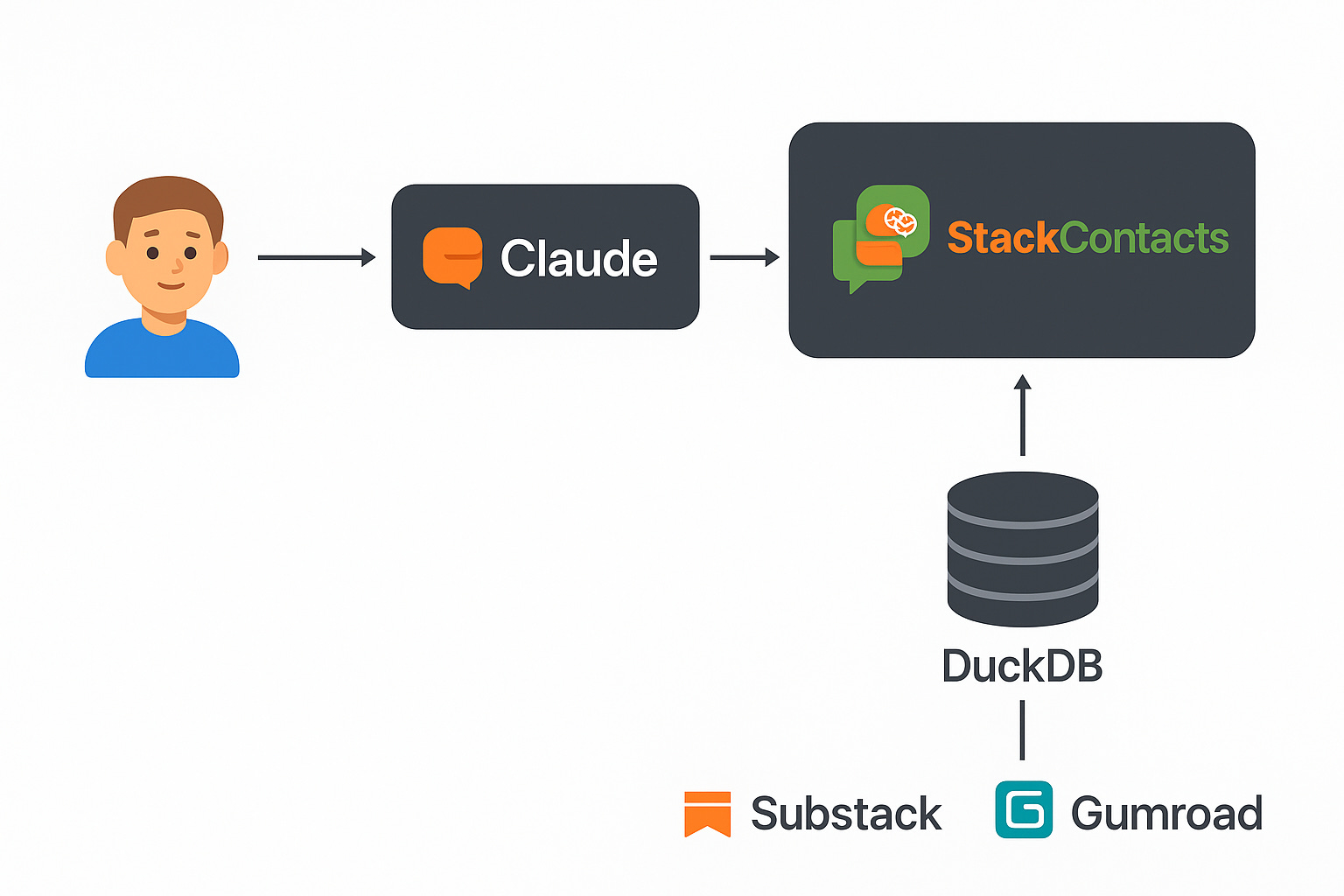
The Solution: Step Outside the Conversation Layer
Here’s the high-level workflow:
Use AI to design the query (still valuable!)
Run the query directly against the database (bypassing MCP)
Export results to CSV (outside the AI context window)
Use the file however you want (outreach, CRM, analysis tools)
This works because:
SQL runs where the data lives (no data transfer limits)
CSV export happens outside the AI context
You get complete, untruncated results
No row limits except disk space
The AI is still useful—it helps you write the query. But you don’t ask it to return 3,000 rows. You ask it to generate SQL, then you run that SQL directly.
What This Unlocks
Once you have this workflow, you can:
Export your full subscriber list for outreach tools
Pull high-intent leads for manual follow-up
Create segmented lists for different campaigns
Feed enrichment APIs with complete contact data
Build source-of-truth CSVs for cross-platform analysis
Archive snapshots for historical comparison
No truncation. No missing data. No “results limited” warnings.
You separate exploration (AI + MCP) from extraction (SQL + CSV).
And suddenly StackContacts stops feeling like a conversation tool with limits—and starts feeling like infrastructure.
Below 👇 are the details on how you unlock your next StackContacts superpower.
Critical First Step: Finding Your Schema Name
Before running any queries, you need to know your schema name. StackContacts creates a separate schema for each publication, based on your publication name.
What’s a Schema?
Think of schemas as folders in your database. Instead of:
SELECT * FROM subscribers_detail
You’ll actually query:
SELECT * FROM pub_yourname_substack_com.subscribers_detail
StackContacts uses the pattern: pub_<your-publication-slug>
How to Find Your Schema Name
Option 1: Ask Claude (Easiest)
Simply ask through the MCP connection:
“What schemas exist in my StackContacts database?”
Or:
“Show me the list of tables in my database”
Claude will respond with something like:
pub_finntropy_substack_com.subscribers_detail
pub_finntropy_substack_com.substack_posts
pub_finntropy_substack_com.gumroad_sales
...
The prefix (pub_finntropy_substack_com in this example) is your schema name.
Option 2: Query Directly
If you’re using Python or the DuckDB CLI:
import duckdb
import os

db_path = os.path.expanduser("~/Library/Application Support/StackContacts/app_db.duckdb")
con = duckdb.connect(db_path, read_only=True)

# List all publication schemas
schemas = con.execute("SELECT schema_name FROM information_schema.schemata WHERE schema_name LIKE 'pub_%'").fetchall()
print("Your publication schemas:")
for schema in schemas:
    print(f"  - {schema[0]}")

# Or list all tables with their schemas
tables = con.execute("""
    SELECT table_schema, table_name
    FROM information_schema.tables
    WHERE table_schema LIKE 'pub_%'
    ORDER BY table_schema, table_name
""").fetchall()
print("\nAvailable tables:")
for schema, table in tables[:10]:  # Show first 10
    print(f"  {schema}.{table}")
Option 3: Derive from Your Substack URL
Your schema name follows this pattern:
Substack URL:
yourname.substack.comSchema name:
pub_yourname_substack_com
Examples:
finntropy.substack.com→pub_finntropy_substack_commy-newsletter.substack.com→pub_my_newsletter_substack_com(hyphens become underscores)Custom domain users may also have schemas like
pub_www_yourdomain_com
Using Your Schema in Queries
Once you know your schema, you have two options:
Option 1: Set the default schema (Simplest)
Set your schema once at the start of your session, then use simple table names:
-- Set your default schema
SET schema 'pub_finntropy_substack_com';

-- Now you can query without prefixes
SELECT * FROM subscribers_detail;
SELECT * FROM gumroad_sales;
Option 2: Use fully-qualified table names
Prefix every table with the schema name:
-- No SET schema needed, but more typing
SELECT * FROM pub_finntropy_substack_com.subscribers_detail;
SELECT * FROM pub_finntropy_substack_com.gumroad_sales;
Recommendation: Use SET schema at the beginning of your session or script. It’s cleaner and all the examples in this article will work without modification.
Pro tip: If you have multiple publications synced to StackContacts, you’ll have multiple pub_* schemas. Use SET schema to switch between them easily.
Step-by-Step: Generating the Right SQL with AI
You still want the AI to help you write queries—SQL is precise, and Claude knows your schema. Here’s how to prompt it effectively.
Prompt Template
Use this format when asking Claude to generate export queries:
Generate a SQL query for StackContacts that exports all active subscribers where:
- membership_state IN ('free_signup', 'subscribed') (includes free and paid subscribers)
- email_disabled = false (actively receiving emails)
- last_opened_at is within the last 90 days
- Include these columns: email, name, source, num_emails_opened, last_opened_at, membership_state
- Order by num_emails_opened descending
- Assume I've already set my schema with "SET schema 'pub_...';"
- Format it for direct execution against DuckDB

IMPORTANT: Do not execute this query. Just show me the SQL.
Why this works:
You explicitly say “do not execute” (prevents MCP truncation)
You mention the schema is already set (Claude will use simple table names)
You specify exact columns that exist in
subscribers_detailtableYou filter early (reduces noise in your export)
Important field clarifications:
is_subscribed = truemeans PAID subscriber (not “subscribed to emails”)is_subscribed = falsemeans FREE subscriberUse
membership_stateto filter by subscriber type:'free_signup'= free subscribers receiving emails'subscribed'= paid subscribers
Use
email_disabled = falseto get only active email recipients
Common field names in StackContacts:
Identifiers:
email,name,user_idStatus:
membership_state,email_disabled,is_paused,is_paying_regular_memberDates:
last_opened_at,last_clicked_at,subscription_created_at,last_subscribed_atEngagement:
num_emails_opened,num_email_opens,links_clicked,num_web_post_views,num_commentsRevenue:
is_paying_regular_member,amount_paid,total_revenue_generatedAttribution:
source,free_attribution,referring_pub_id
If you want fully-qualified names instead:
Add this line to your prompt: “Include the full schema prefix in table names (pub_.)”
Key Tips
Be explicit about columns: Don’t use SELECT *. Specify exactly what you need. This keeps your CSV clean and reduces file size.
Filter early: Apply WHERE clauses to narrow results before export. Don’t export 30,000 rows and filter in Excel. Filter in SQL.
Sanity-check the WHERE clause: Make sure the conditions make sense. Common mistakes:
Excluding subscribers you actually want
Using the wrong date columns
Forgetting to handle NULL values
Example queries you might generate:
Note: These examples assume you’ve set your schema first with SET schema 'pub_<yourname>_substack_com';
-- Set your schema once
SET schema 'pub_finntropy_substack_com';

-- All active subscribers (free and paid) who opened recently
SELECT
  email,
  name,
  source,
  num_emails_opened,
  last_opened_at,
  membership_state
FROM subscribers_detail
WHERE membership_state IN ('free_signup', 'subscribed')
  AND email_disabled = false
  AND last_opened_at > NOW() - INTERVAL '90 days'
ORDER BY num_emails_opened DESC;
-- Free subscribers with high engagement (potential upgrade candidates)
SELECT
  email,
  name,
  num_web_post_views,
  num_comments,
  links_clicked,
  num_emails_opened
FROM subscribers_detail
WHERE membership_state = 'free_signup'
  AND email_disabled = false
  AND num_web_post_views > 5
ORDER BY num_web_post_views DESC;
-- High-engagement subscribers for partnership outreach
SELECT
  email,
  name,
  num_emails_opened,
  num_web_post_views,
  last_opened_at,
  activity_rating
FROM subscribers_detail
WHERE membership_state IN ('free_signup', 'subscribed')
  AND email_disabled = false
  AND num_emails_opened > 10
  AND last_opened_at > NOW() - INTERVAL '30 days'
ORDER BY activity_rating DESC;
Remember: Just run SET schema 'pub_<yourname>_substack_com'; once, then all your queries use simple table names.
Once you have the SQL, you’re ready to run it.
Running the Query Against the Database
StackContacts uses a local DuckDB database—a single file stored on your machine. This makes direct access straightforward: no server setup, no authentication, just point a tool at the file.
Locating Your StackContacts Database File
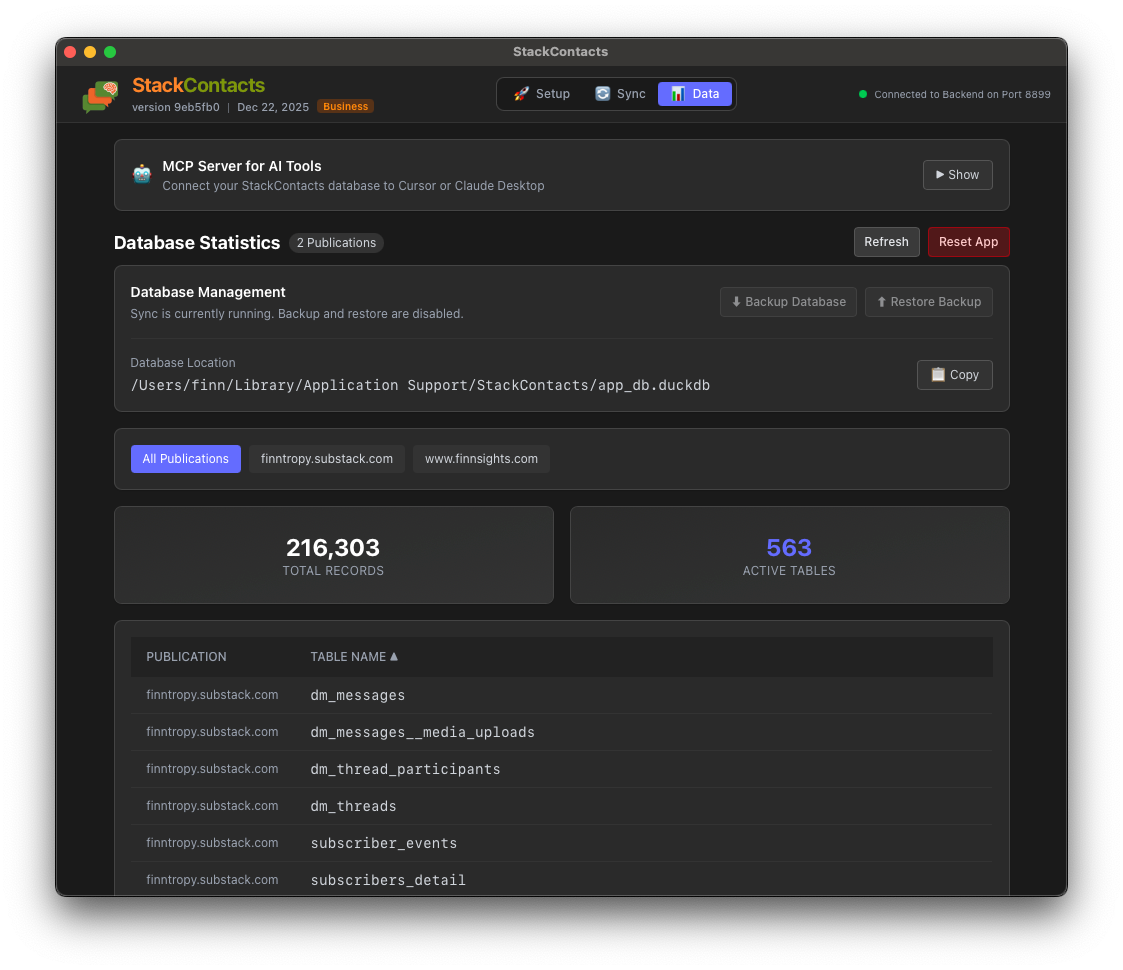
Your DuckDB database is at:
/Users/<your-username>/Library/Application Support/StackContacts/app_db.duckdb
Replace <your-username> with your actual Mac username. To find your username, open Terminal and run:
echo $HOME
Or ask Claude: “Where is my StackContacts database file located?” — the MCP server knows the exact path.
If you open your StackContacts application, the Data tab / Database Management shows you the database location, see screenshot below:
Install DuckDB CLI (One Command)
Open Terminal and run this single command:
curl -L https://github.com/duckdb/duckdb/releases/download/v1.4.3/duckdb_cli-osx-universal.zip -o /tmp/duckdb.zip && unzip -o /tmp/duckdb.zip -d /tmp && sudo mv /tmp/duckdb /usr/local/bin/ && rm /tmp/duckdb.zip && echo "DuckDB installed successfully!"
What this does:
Downloads DuckDB CLI
Unzips it
Moves it to a folder in your system path
Cleans up temporary files
You’ll be asked for your Mac password (this is normal for
sudo)
To verify it worked:
duckdb --version
You should see something like v1.4.3.
Find Your Schema Name (Required First Step)
Before running any exports, you need to know your publication’s schema name. Open Terminal and run:
duckdb "$HOME/Library/Application Support/StackContacts/app_db.duckdb" "SELECT schema_name FROM information_schema.schemata WHERE schema_name LIKE 'pub_%'"
You’ll see output like this (if you have multiple publications):
┌────────────────────────────────────────┐
│              schema_name               │
│                varchar                 │
├────────────────────────────────────────┤
│ pub_finntropy_substack_com             │
│ pub_finntropy_substack_com_staging     │
│ pub_stackcontacts_substack_com         │
│ pub_stackcontacts_substack_com_staging │
│ pub_www_finnsights_com                 │
│ pub_www_finnsights_com_staging         │
└────────────────────────────────────────┘
Copy this schema name — pub_finntropy_substack_com - you’ll use it in all your export commands below. If you are using a Substack custom domain, you would look for something like pub_www_finnsights_com
Export Your Data (Copy-Paste Ready Commands)
Replace pub_YOUR_SCHEMA_HERE with your actual schema name from above.
Export all active subscribers (free and paid):
duckdb "$HOME/Library/Application Support/StackContacts/app_db.duckdb" "SET schema 'pub_YOUR_SCHEMA_HERE'; COPY (SELECT email, name, source, num_emails_opened, last_opened_at, membership_state FROM subscribers_detail WHERE membership_state IN ('free_signup', 'subscribed') AND email_disabled = false ORDER BY num_emails_opened DESC) TO '$HOME/Downloads/active_subscribers.csv' WITH (HEADER true)"
Export subscribers who opened recently (last 90 days):
duckdb "$HOME/Library/Application Support/StackContacts/app_db.duckdb" "SET schema 'pub_YOUR_SCHEMA_HERE'; COPY (SELECT email, name, num_emails_opened, last_opened_at FROM subscribers_detail WHERE membership_state IN ('free_signup', 'subscribed') AND email_disabled = false AND last_opened_at > NOW() - INTERVAL '90 days' ORDER BY num_emails_opened DESC) TO '$HOME/Downloads/recent_openers.csv' WITH (HEADER true)"
Export high-engagement subscribers (10+ opens, active last 30 days):
duckdb "$HOME/Library/Application Support/StackContacts/app_db.duckdb" "SET schema 'pub_YOUR_SCHEMA_HERE'; COPY (SELECT email, name, num_emails_opened, num_web_post_views, last_opened_at FROM subscribers_detail WHERE membership_state IN ('free_signup', 'subscribed') AND email_disabled = false AND num_emails_opened > 10 AND last_opened_at > NOW() - INTERVAL '30 days' ORDER BY num_emails_opened DESC) TO '$HOME/Downloads/high_engagement.csv' WITH (HEADER true)"
Export free subscribers with high engagement (potential upgrade candidates):
duckdb "$HOME/Library/Application Support/StackContacts/app_db.duckdb" "SET schema 'pub_YOUR_SCHEMA_HERE'; COPY (SELECT email, name, num_web_post_views, num_comments, links_clicked FROM subscribers_detail WHERE membership_state = 'free_signup' AND email_disabled = false AND num_web_post_views > 5 ORDER BY num_web_post_views DESC) TO '$HOME/Downloads/potential_upgrades.csv' WITH (HEADER true)"
Your CSV files will be saved to your Downloads folder.
Test Before Exporting (Optional but Recommended)
Want to see a preview before exporting? Run this to see the first 10 rows:
duckdb "$HOME/Library/Application Support/StackContacts/app_db.duckdb" "SET schema 'pub_YOUR_SCHEMA_HERE'; SELECT email, name, num_emails_opened, membership_state FROM subscribers_detail WHERE membership_state IN ('free_signup', 'subscribed') AND email_disabled = false LIMIT 10"
Check the count of rows you’ll export:
duckdb "$HOME/Library/Application Support/StackContacts/app_db.duckdb" "SET schema 'pub_YOUR_SCHEMA_HERE'; SELECT COUNT(*) FROM subscribers_detail WHERE membership_state IN ('free_signup', 'subscribed') AND email_disabled = false"
Exporting to CSV (The Clean Way)
All the export commands above will create CSV files in your Downloads folder. The files will have headers (column names) and be formatted for easy import into Excel, Google Sheets, or any other tool.
What You Get
Each CSV export includes:
Headers - First row has column names
Clean data - Properly formatted for spreadsheets
No row limits - Complete, untruncated results
Common Fields You Can Export
When creating your own export commands, here are the most useful fields:
Basic Info:
email- Email addressname- Subscriber namesource- Where they signed up
Engagement:
num_emails_opened- Total emails openednum_email_opens- Total open events (can open same email multiple times)num_web_post_views- Web post viewsnum_comments- Comments leftlinks_clicked- Links clicked
Status:
membership_state- Subscriber type:'free_signup'(free) or'subscribed'(paid)email_disabled- Whether emails are disabled (true/false)is_paused- Subscription paused (true/false)is_paying_regular_member- Paying subscriber (true/false)
Important: is_subscribed = true means PAID subscriber, not “receiving emails”. Use membership_state = 'free_signup' for free subscribers and email_disabled = false for active email recipients.
Dates:
last_opened_at- Last email open datelast_clicked_at- Last link click datesubscription_created_at- When they subscribed
Creating Your Own Export
To modify the exports above:
Change the filename: Replace the part after
TO
TO '$HOME/Downloads/MY_CUSTOM_NAME.csv'
Change the columns: Edit the SELECT clause
SELECT email, name, num_emails_opened
Change the filters: Edit the WHERE clause
WHERE is_subscribed = true AND num_emails_opened > 5
Change the sorting: Edit the ORDER BY clause
ORDER BY num_emails_opened DESC
Troubleshooting
Error: “command not found: duckdb”
The installation didn’t complete. Try running the install command again.
Error: “No such file or directory”
Your database path is different. Ask Claude: “Where is my StackContacts database?”
Error: “Schema does not exist”
You didn’t replace
pub_YOUR_SCHEMA_HEREwith your actual schema nameRun the “Find Your Schema Name” command above to get it
Empty CSV file
Your WHERE clause filtered out all rows
Try running the “Check count” command to see how many rows match
Common Pitfalls (and How to Avoid Them)
Pitfall 1: Pulling Everything Instead of Intent-Driven Subsets
The mistake: Running SELECT * FROM subscribers_detail because you want “all the data.”
Why it’s bad:
Huge file with columns you don’t need
Harder to process and analyze
Often includes sensitive fields you shouldn’t export
Fix: Always start with the use case.
Why am I exporting this?
What will I do with it?
Which columns do I actually need?
Then write your query accordingly.
Pitfall 2: Forgetting to Exclude Churned/Unsubscribed Users
The mistake: Exporting subscribers without checking their status.
Why it’s bad:
You might contact people who unsubscribed (bad for deliverability and reputation)
You waste enrichment credits on dead leads
Your outreach list is polluted
Fix: Always filter on subscription status and email preferences:
-- For all active email recipients (free and paid)
WHERE membership_state IN ('free_signup', 'subscribed')
  AND email_disabled = false

-- For only free subscribers receiving emails
WHERE membership_state = 'free_signup'
  AND email_disabled = false
Pitfall 3: Exporting PII Without a Plan
The mistake: Creating CSV files with full names, emails, and engagement data, then leaving them in Downloads.
Why it’s bad:
Privacy risk
Compliance issues (GDPR, CCPA)
Data leak potential
Fix:
Only export what you need
Store exports securely (encrypted folders, password-protected)
Delete exports when you’re done with them
Never commit CSVs to public repos
Pitfall 4: Re-Running Massive Queries Unnecessarily
The mistake: Running a 10,000-row export every time you want to check one thing.
Why it’s bad:
Slow
Wastes database resources
Creates unnecessary files
Fix:
Use LIMIT during testing
Save your verified exports and reuse them
Use AI + MCP for quick spot-checks, SQL + CSV for bulk operations
When to Use MCP vs. Direct DB Access
You now have two tools. Here’s when to use each.
Use MCP (AI + Conversational Queries) When:
Exploring patterns: “What are my top posts by engagement?”
Asking open-ended questions: “What’s interesting about my subscribers?”
Pulling small, focused samples: “Show me 10 subscribers who opened recently”
Iterating quickly: You’re not sure what you’re looking for yet
Summarizing and analyzing: The AI provides insights, not just data
Example: “Which of my Notes performed best last month?”
Use Direct SQL + CSV Export When:
Doing outreach: You need a clean list for email tools, CRM, or manual follow-up
Feeding another system: Enrichment APIs, analytics platforms, partner dashboards
Creating a source-of-truth dataset: Archival snapshots, cross-platform joins
You care about completeness: Missing 200 rows because of truncation isn’t acceptable
Repeatability matters: You’ll run this export weekly or monthly
Example: “Export all active subscribers with >5 post views for a partnership outreach campaign.”
Turning This Into a Repeatable System
Once you’ve done this once, make it systematic.
Suggested Export Cadence
Weekly:
High-intent leads for outreach
New subscribers to welcome/segment
Active but non-converting subscribers
Monthly:
Full active subscriber snapshot
Engagement metrics for reporting
Churn risk analysis exports
Quarterly:
Complete historical archive
Deep segmentation analysis
Cross-platform matching (Substack + Gumroad + Twitter, etc.)
Save Your SQL Queries
Create a queries/ folder and save your verified SQL:
queries/
  export_active_subscribers.sql
  export_highintent_leads.sql
  export_monthly_snapshot.sql
  export_to_csv.sh  # Shell script wrapper
Each file contains the full query, ready to run. Add comments for context:
-- High-Intent Leads Export
-- Purpose: Free subscribers with high web engagement, active recently (potential upgrades)
-- Use case: Manual outreach, upgrade campaigns
-- Expected rows: ~200-500 depending on publication size

-- Set your schema first
SET schema 'pub_finntropy_substack_com';

-- Then run the query with simple table names
SELECT
  email,
  name,
  num_web_post_views,
  num_comments,
  last_opened_at,
  activity_rating
FROM subscribers_detail
WHERE membership_state = 'free_signup'
  AND email_disabled = false
  AND num_web_post_views > 5
  AND last_opened_at > NOW() - INTERVAL '30 days'
ORDER BY activity_rating DESC;
Shell script wrapper for automation:
#!/bin/bash
# export_to_csv.sh

DB_PATH="$HOME/Library/Application Support/StackContacts/app_db.duckdb"
EXPORT_DIR="$HOME/stackcontacts_exports"
DATE=$(date +%Y-%m-%d)

mkdir -p "$EXPORT_DIR"

python3 << EOF
import duckdb
import os

con = duckdb.connect("$DB_PATH", read_only=True)

# Read query from file
with open('queries/export_active_subscribers.sql', 'r') as f:
    query = f.read()

# Export to CSV
con.execute(f"""
  COPY ({query})
  TO '$EXPORT_DIR/active_subscribers_$DATE.csv'
  WITH (HEADER true)
""")

print(f"Export complete: $EXPORT_DIR/active_subscribers_$DATE.csv")
EOF
Now running exports takes 30 seconds, not 30 minutes.
Optional Upgrades (Future Roadmap Ideas)
As you get comfortable with this workflow, you might want:
Scheduled exports: Cron jobs that run your export scripts daily/weekly
# Add to crontab: Run every Monday at 9am
0 9 * * 1 /path/to/export_to_csv.sh
Export pipelines: DuckDB → CSV → enrichment API → CRM, fully automated
Custom dashboards: Tools like Metabase or Superset that query DuckDB directly
Alerting: Watch your database for conditions and notify you
# Check for high-intent subscribers daily
import duckdb, os
con = duckdb.connect(os.path.expanduser("~/Library/Application Support/StackContacts/app_db.duckdb"), read_only=True)

# Set your schema (replace with yours)
con.execute("SET schema 'pub_finntropy_substack_com'")

# Query with simple table name and actual fields
count = con.execute("SELECT COUNT(*) FROM subscribers_detail WHERE num_web_post_views > 10 AND last_opened_at > NOW() - INTERVAL '7 days'").fetchone()[0]
if count > 50:
    print(f"Alert: {count} high-intent subscribers!")
These are all possible because you have direct access to the database file.
Power Users Don’t Fight Limits—They Route Around Them
MCP limits aren’t a bug. They’re a design decision optimized for conversation, not extraction.
Once you understand that, the path forward is obvious:
Use MCP for exploration and pattern recognition
Use SQL for extraction and bulk operations
Keep them separate, and both work beautifully
The 500-row wall isn’t a wall. It’s a sign you’ve graduated to power user territory.
Most creators will stay in Layer 1 (MCP) because it’s comfortable. But if you’re doing serious outreach, segmentation, or cross-platform work, Layer 2 (direct SQL) is where the leverage is.
StackContacts gives you both layers. Now you know when to use each.
Key Takeaways
MCP is for exploration, SQL is for extraction — Learn which layer to use for each task
The 500-row limit is a context window issue, not a database limit — Your data is complete, you’re just accessing it through the wrong layer
Use AI to write queries, but run them directly against the database — Best of both worlds: AI assistance + complete results
Always test with LIMIT before running full exports — Prevents “oops I exported garbage” moments
Save your verified queries for reuse — Turn one-off exports into repeatable systems
Be intentional about what you export and why — Start with the use case, not “SELECT *”
Name your exports with timestamps and descriptions — Future you will thank past you
Your Turn
If you’ve hit the 500-row wall before, try this workflow:
Pick one use case (outreach, segmentation, enrichment)
Use Claude to generate the SQL
Run it directly against your database
Export the full, untruncated results
Share what you built (community, office hours, or just reply to this post)
Questions? Bring your specific export scenario to office hours and we’ll debug it together.
Related:
Revenue Attribution: Which Content Actually Drives Sales
Advanced Segmentation: Finding Your Superfans
Predictive Analytics: Spotting High-Intent Subscribers
Hey Finn. I have a very specific process or two I'd love to run through that I hit this on that I think would be very popular with other creators. Would you be open to do something live or on zoom that you could then share in your library of masterclasses/tutorials? Just a thought! The first one would be "The Silent Loyal Outreach Process"
You got me lol… will probably have questions as I dig into this when are you planning to launch calls?
hehe